
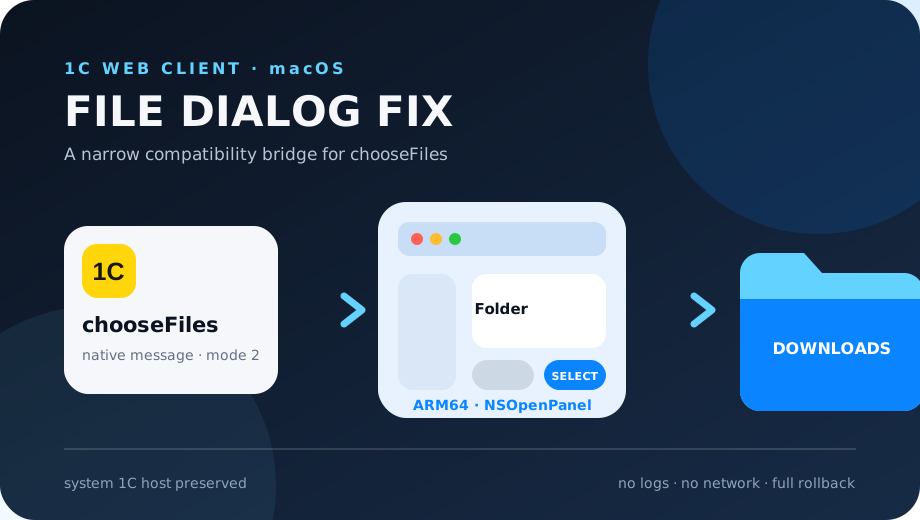
The failure looks unusual: you click “Save attachments” in the 1C web client, an almost empty white macOS window appears, and any interaction closes it. No folder is selected, no files are written, and neither individual attachment links nor keyboard navigation helps.
The form in 1C and Chrome itself may be working correctly. In the case we diagnosed, an older native 1C file-system host stalled on chooseFiles: the browser delivered the request, but the host never returned a destination path. This guide explains how to distinguish that failure from blocked downloads and how the narrow compatibility fix works.
Request path
What happens after “Save attachments” is clicked
- 011C calls chooseFiles
- 02Chrome sends a native message
- 03macOS returns a folder
- 04The original host writes the files
- The blank window appears before attachment data is saved
- Without a chooseFiles response, 1C has no destination directory
- Only the folder picker needs to be substituted
- Document contents never pass through the workaround
How this differs from a blocked Chrome download
When Chrome blocks a regular download, it normally shows an icon, a warning, or an entry in the downloads list. This failure looks different: 1C opens what should be the operating-system folder picker, the window is blank or translucent, and it disappears without returning a result. The request remains incomplete because the destination path never reaches the web client.
A useful signal is that bulk saving, individual attachments, and keyboard-based folder selection all fail in the same way. That points below the web page, at the boundary between the Chrome extension and the native application responsible for the system dialog.
- no new item in Chrome downloads
- the window does not behave like a normal Finder panel
- 1C reports no successful save after it closes
- reloading the page does not change the symptom
Where the request chain actually breaks
The 1C file-system integration for Chrome has two parts. A browser extension receives the web-client request, while a native-messaging host registered in macOS performs local file-system operations. Bulk saving first calls chooseFiles in directory-selection mode; only after a folder is returned does 1C check paths and obtain the attachments.
In the diagnosed case the Chrome extension was current, the native host accepted a connection, and utility methods returned normally, but chooseFiles never answered. The affected helper was an x86_64 build, while the replacement dialog was built natively for arm64. That does not prove architecture is the only cause on every Mac, but it precisely places this failure in the legacy dialog rather than in document permissions or the attachment itself.
| Layer | Expected behavior | Failure signal |
|---|---|---|
| 1C web client | Creates the save request | The request starts but receives no directory |
| Chrome extension | Forwards the native message | The host cannot connect or the port closes |
| 1C native host | Displays a dialog and returns a path | Blank window and no chooseFiles reply |
| File system | Receives DOCX/PDF after selection | The workflow never reaches the write stage |
Why updating the Chrome extension may not be enough
The Chrome Web Store extension and the native helper have separate versions and installation paths. The store updates the JavaScript bridge inside the browser; the local native application is installed separately by the 1C web client or platform package. A current browser extension therefore does not guarantee a compatible local file-system host.
The preferred first step is always an official compatible file-system extension supplied by your 1C publication or cloud provider. Use the custom fix only when the official installer is unavailable, keeps installing the same affected build, or cannot be rolled out quickly. Remove the workaround when a working official host becomes available.
How the KMVSG compatibility fix works
The project installs a per-user native-messaging manifest, which takes precedence over the system manifest only for the current macOS account. A small proxy forwards every message unchanged to the original 1C host except chooseFiles in directory-selection mode. For that single call it starts a modern NSOpenPanel compiled locally for the machine architecture.
Once the user confirms a folder, the proxy returns the path in the format expected by the web client. Path checks and attachment retrieval then go back through the original 1C host. Nothing under /Library is modified, logging is disabled, and the workaround contains no networking code.
- per-user installation
- backup of an existing user-level manifest
- no logs or network requests
- open source proxy, installer, and Swift dialog
- one-command rollback
Installation, verification, and rollback
Installation requires macOS, Chrome, the original 1C file-system host, Node.js 18+, and Xcode Command Line Tools. The installer discovers the system 1C manifest, backs up the previous user-level configuration, compiles FolderPicker for the current Mac, and registers the proxy. Reopen the 1C tab afterward; in some environments Chrome also needs a restart.
Verify with one message containing small DOCX and PDF files: choose “Save attachments,” confirm that a complete Finder-style panel appears, select a test directory, and compare the file types and sizes. Running uninstall.sh removes the proxy and restores the prior user-level manifest when one existed.
Limits and a safe rollout order
This fix targets one symptom: a stalled directory picker in the 1C web client on macOS. It does not solve enterprise Chrome download policies, missing 1C permissions, cryptography failures, an unavailable attachment, or corrupted document data. If the native host cannot connect at all, repair the original installation first.
For company deployment, review the source, test it in a separate browser profile, and keep a rollback path. The project does not ship any 1C components and is not a replacement for official support. It is a user-level compatibility bridge until the platform vendor or cloud provider supplies a corrected helper.
Quick checklist
- Confirm that the symptom is the blank directory picker
- Check Chrome-extension and native-host versions separately
- Request an official compatible installer first
- Back up the user-level manifest before changing it
- Test with small DOCX and PDF attachments
- Remove the proxy after an official fix is installed
Links and source code
This article covers: 1C macOS attachments not saving, blank 1C Chrome file dialog, chooseFiles 1C macOS, 1C FileSystem Extension Mac, 1C native messaging.